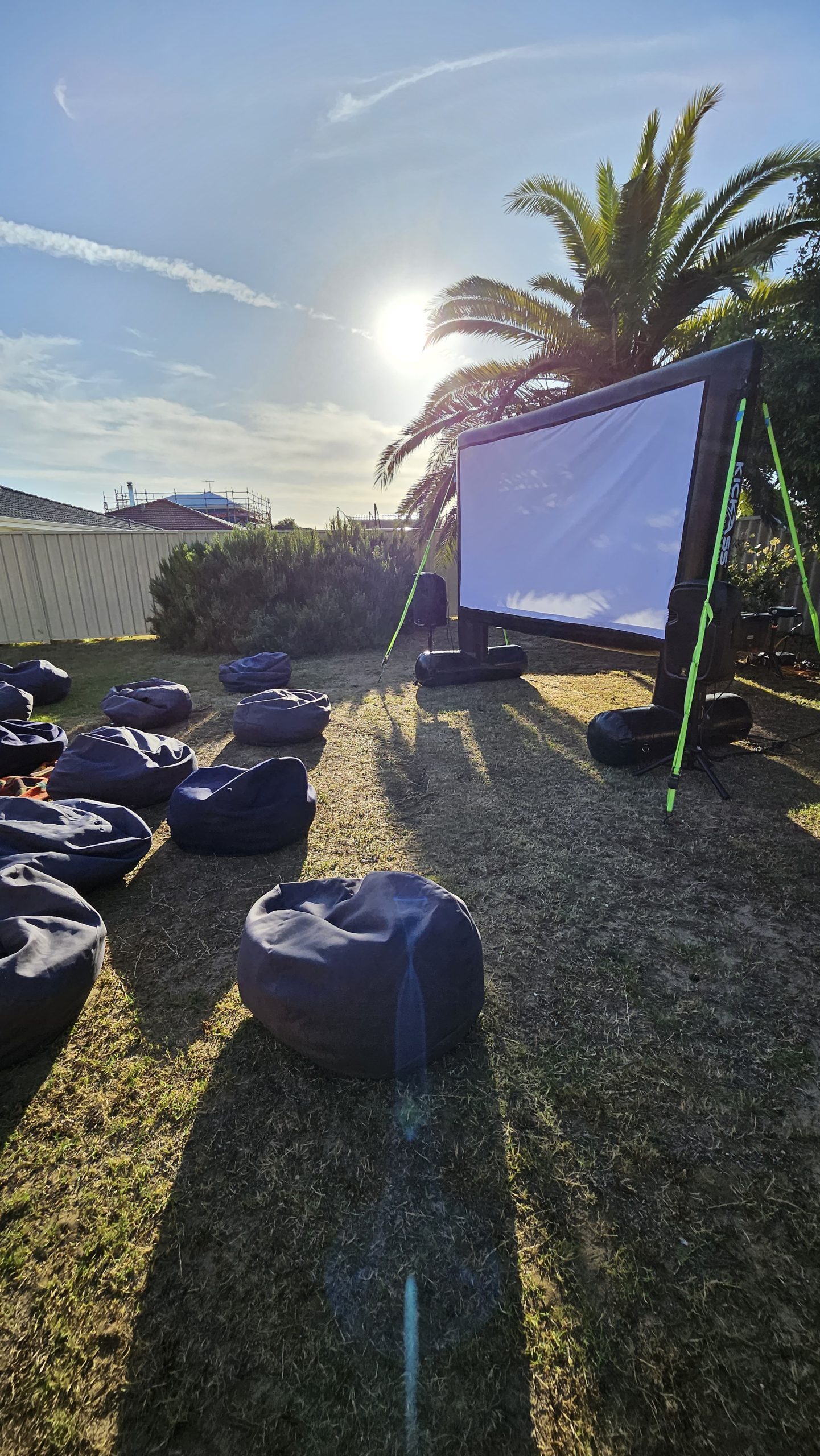
Something has gone wrong with your outdoor cinema setup and the guests are arriving in an hour. This guide covers every common problem — washed out picture, no sound, screen movement, power failure, HDMI issues — and gives you a direct fix for each one. Work through them in order and most issues resolve in under five minutes.
Select what you are seeing and we will point you to the right fix.
Problem — washed out or dim picture
⚠️
Symptom: The picture is visible but looks pale, grey, or washed out. Colours are flat and the image is hard to see clearly.
✅
Fix 1 — It is not dark enough yet. This is the most common cause by far. Wait until at least 30 minutes after sunset. In Perth’s autumn months, that means no earlier than 7:00 to 7:15pm. The picture that looks washed out at 6:45pm will look stunning at 7:30pm. Patience is the fix.
✅
Fix 2 — Ambient light hitting the screen face. Check for streetlights, security lights, or lit windows facing the screen. Reposition the screen so the face points away from any light source, or temporarily block the source with a sheet or shade cloth.
✅
Fix 3 — Projector brightness setting. Access the projector menu and check the brightness or lamp mode setting. Economy or ECO mode reduces brightness significantly. Switch to standard or high brightness mode.
Problem — blurry or out of focus image
⚠️
Symptom: The image is visible but soft, blurry, or has a double-image effect. Text is unreadable.
✅
Fix 1 — Adjust the focus ring. Almost every projector has a physical focus ring on the lens. Rotate it slowly while looking at the screen until the image sharpens. Do this from the projector, not from a distance.
✅
Fix 2 — Projector distance. Moving the projector closer or further from the screen changes the image size and sharpness. Each projector has an optimal throw distance. If the image is too large and soft, move the projector closer. If keystone distortion (trapezoidal shape) appears, adjust the keystone correction in the projector menu.
ProjectorCentral has a clear visual guide on what keystone distortion looks like and how to correct it.
✅
Fix 3 — Screen surface is not taut. An inflatable screen that is under-inflated will wrinkle and distort the image. Add air until the screen surface is firm and flat all the way to the edges.
Problem — “No Signal” on screen
⚠️
Symptom: The projector is on and throwing light but the screen shows “No Signal”, “No Input”, or just a blank blue or black screen.
✅
Fix 1 — Wrong input selected. Press the Source or Input button on the projector remote and cycle through the inputs until you find the active one (HDMI 1, HDMI 2, USB, VGA etc.). This is the most common cause.
✅
Fix 2 — HDMI cable not seated properly. Unplug and firmly reseat both ends of the HDMI cable — at the projector and at the source device. Try a different HDMI port if one is available. If the cable is kinked or damaged, swap it out.
✅
Fix 3 — Source device not outputting video. On a laptop, press the display toggle shortcut (usually Fn + F4, F5, or F8 depending on the model) to enable external display output. On a phone or tablet, check that screen mirroring or HDMI output is enabled in settings.
✅
Fix 4 — Restart both devices. Turn off the projector and the source device completely. Wait 30 seconds, power on the source device first, wait for it to fully boot, then power on the projector. This resolves most handshake issues between devices.
Problem — no sound, low volume, or distorted audio
⚠️
Symptom: Picture is fine but there is no audio, the audio is very quiet, or it sounds distorted or crackly.
✅
Fix 1 — Check all volume levels. There are typically three volume points to check: the source device (laptop/phone), the projector itself, and the external speaker if you have one. All three need to be turned up. A common mistake is maxing out one and leaving another at zero.
✅
Fix 2 — Check audio output setting on source device. On a laptop, right-click the volume icon and check which device audio is being sent to. If it is set to the laptop speakers rather than HDMI output, the projector or external speaker will receive no signal.
✅
Fix 3 — Speaker cable not connected. Check every cable connection between the projector, amplifier, and speakers. A partially inserted jack will produce crackling or no audio. Push all connectors fully home and test again.
✅
Fix 4 — Bluetooth speaker not paired. If using a Bluetooth speaker, confirm it is paired to the correct source device and has battery charge. Bluetooth can disconnect silently — check the speaker’s status light and re-pair if needed.
Problem — power cutting out or not starting
⚠️
Symptom: Projector or speaker cuts out mid-film, or equipment will not start at all.
✅
Fix 1 — Circuit breaker tripped. Running a projector, speakers, and other electronics on a single outdoor power point can trip a circuit breaker. Most household circuits are rated at 10 amps — a projector alone can draw 3 to 5 amps.
Energy Made Easy has useful guidance on household circuit loads. Check your switchboard and reset any tripped breakers. Spread equipment across multiple circuits if possible.
✅
Fix 2 — Extension lead overloaded. Not all extension leads are rated for high-draw equipment like projectors. Use a heavy-duty extension lead rated for at least 10 amps. Avoid daisy-chaining multiple extension leads together.
✅
Fix 3 — Generator out of fuel or not started correctly. If running on a generator, check the fuel level, ensure the choke is in the correct position for a warm start, and confirm the output switch is set to ON. If it has been running for over 4 hours, it may need a fuel refill.
✅
Fix 4 — Projector overheating. Projectors automatically shut down when they overheat. Ensure the projector has at least 30cm of clear space around all vents. Do not place it in an enclosed box or bag while running. Allow it to cool for 10 minutes before restarting.
Problem — screen moving, swaying, or collapsing
⚠️
Symptom: The inflatable screen is swaying in the breeze, leaning to one side, or the surface is wrinkled and soft.
✅
Fix 1 — Add more air. An under-inflated screen is the most common cause of sway and surface wrinkling. The screen should feel firm to the touch across the entire face. Inflate until fully taut. In cold conditions, pressure drops slightly — top up if needed.
✅
Fix 2 — Check all pegs and guy ropes. Every peg point should be fully driven in at a 45-degree angle away from the screen. Guy ropes should be taut, not slack. Add additional pegs if the ground allows it — four corner pegs plus additional side pegs in windy conditions.
✅
Fix 3 — Reposition to reduce wind exposure. If the screen faces directly into the prevailing wind direction, rotate it so the back faces the wind instead. Using a fence, hedge, or wall as a windbreak on the upwind side makes a significant difference. If wind is a regular concern at your venue, the
framed screen is more stable than the inflatable in breezy conditions.
✅
Fix 4 — Wind too strong to continue safely. If sustained wind is above 30km/h and the screen cannot be stabilised, it is safer to postpone. Perth’s sea breeze typically drops after 8pm — waiting it out is often a better option than fighting it. Check the
BOM Perth forecast for conditions.
Problem — streaming dropping out or buffering
⚠️
Symptom: Netflix, Disney Plus, or another streaming service is buffering, dropping out, or showing a low-quality image.
✅
Fix 1 — Switch from Wi-Fi to mobile data. Home Wi-Fi signal often does not extend reliably to a backyard or garden. Enable mobile hotspot on a second phone and connect your streaming device to that instead. 4G or 5G data is more reliable outdoors than a distant Wi-Fi signal.
✅
Fix 2 — Download the film before the event. Most streaming services allow downloads for offline viewing. Download the film to the device while on Wi-Fi at home several hours before the event starts. Check
JustWatch Australia to confirm which services offer downloads for your chosen film. Offline playback eliminates all streaming reliability issues.
✅
Fix 3 — Use USB or Blu-ray instead. A USB drive or Blu-ray disc is always more reliable than streaming for an outdoor event. Rip the film to USB in advance as a backup if you plan to stream — it takes 10 minutes and removes all risk.
Problem — rain starting mid-event
⚠️
Symptom: Rain begins during the screening. Light drizzle or heavy downpour.
✅
Light drizzle: The inflatable screen itself handles light rain without issue. The projector is the vulnerable piece of equipment. Move it under a cover, patio, or pop-up shelter immediately — even a large umbrella works in light rain. Keep cables away from pooling water.
✅
Heavy rain: Stop the event, power down all equipment, and move electronics indoors immediately. Do not attempt to continue in heavy rain with electrical equipment. The screen can stay inflated and will dry out, but the projector, speakers, and power source must be protected.
💡
The best protection against rain is timing. Running your event in Perth’s autumn months (March to May) dramatically reduces rain risk. Check the
BOM 7-day forecast in the week before your event and always have an indoor backup venue identified. See our
Perth seasonal timing guide for the best months to run outdoor events.
The simplest fix of all
Almost every issue on this list comes down to one of three things: starting too early before it is dark, an unsecured screen, or a cable that is not fully seated. Work through those three checks first and you will resolve 80% of outdoor cinema problems in under two minutes.
For a full setup guide covering screen placement, power planning, and wind management before your event, see our common setup mistakes guide. And for the full planning checklist, see our backyard movie night checklist.
 Perth Pop-Up Movies